
The Appointments module lets you schedule patients ahead of time, see your day at a glance, and turn a booking into a live consultation when the patient arrives.
Appointment statuses
| Status | What it means |
|---|---|
| Pending | Booked at a custom time but not yet confirmed — or booked online by a new patient who still needs to be registered. |
| Scheduled | Confirmed in an available slot. A confirmation email is sent to the patient. |
| In Consultation | The patient has arrived and the visit has started. |
| Completed | The visit is finished. |
| Cancelled | The appointment was cancelled. The time slot is freed for re-booking. |
| No Show | The patient didn't attend. The time slot is freed for re-booking. |
Two ways to view appointments
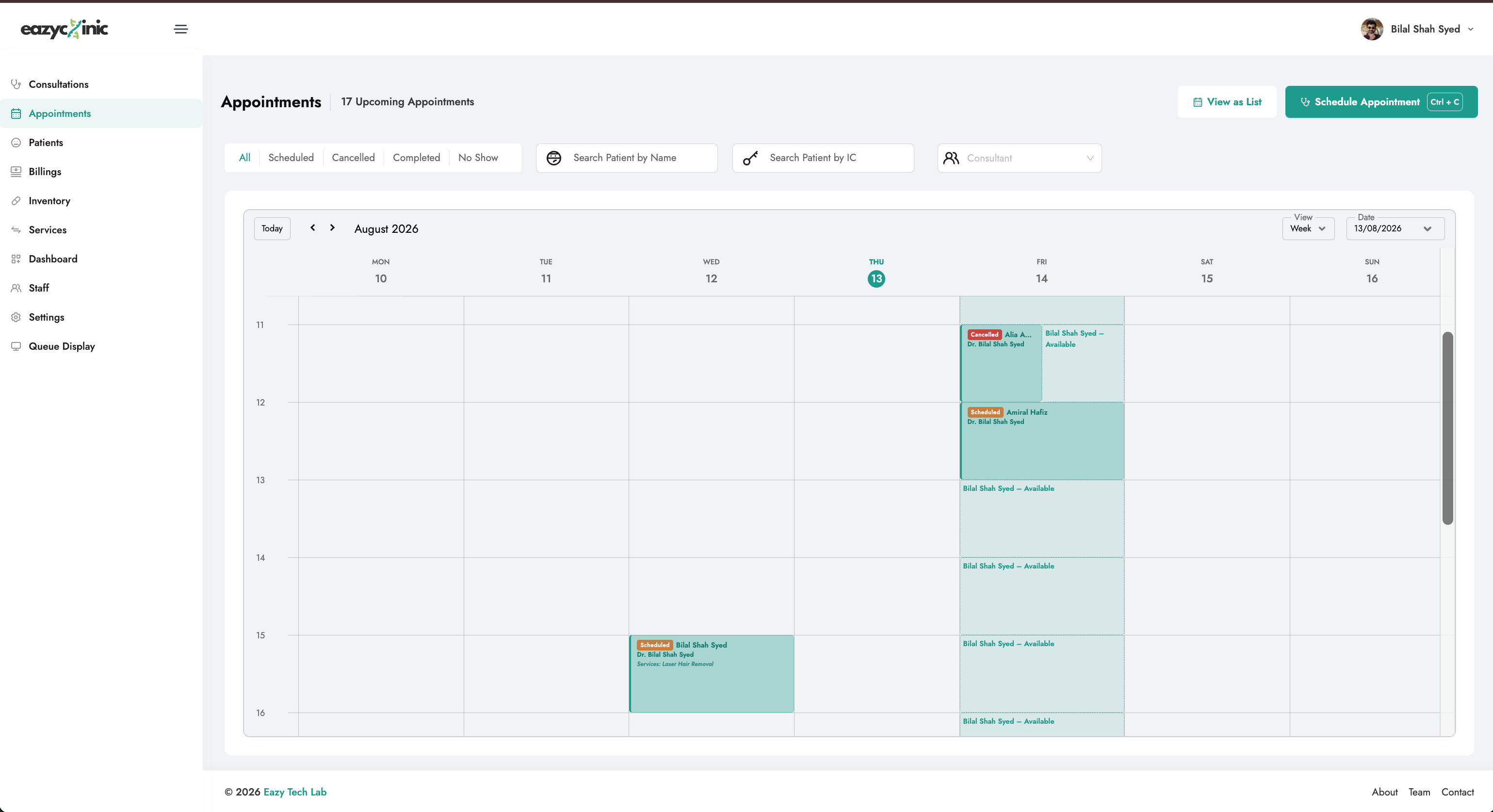
- List — a filterable table of appointments. Good for finding a specific booking or working through the day.
- Calendar — a visual day/week view. Good for spotting gaps and managing a consultant's schedule.
Switch between them from the Appointments module.
Booking an appointment
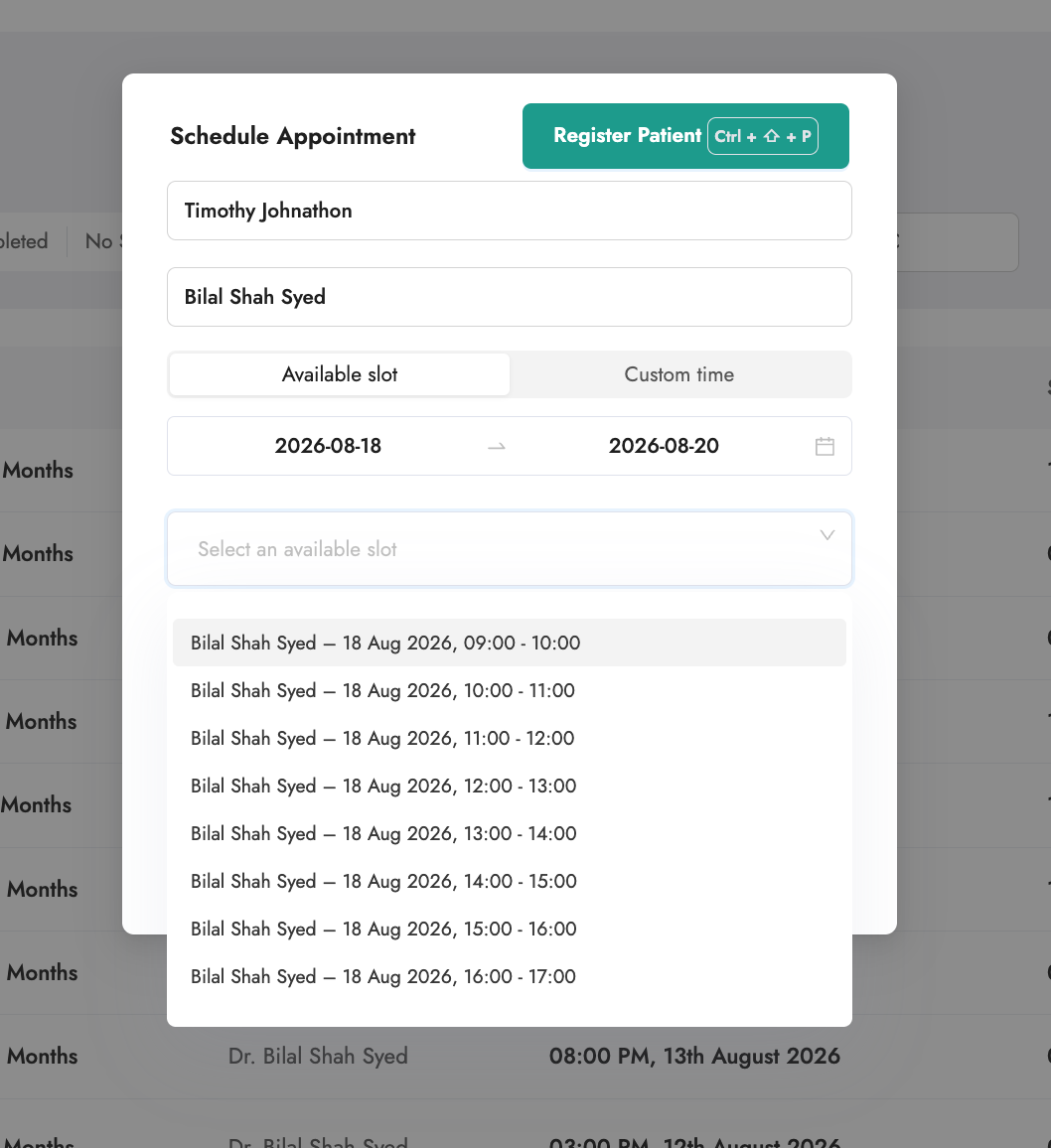
Click Create Appointment and fill in the form:
- Patient — search for an existing patient, or register a new one on the spot.
- Consultant — choose who the patient is booked with.
- Time — choose one of two modes:
- Available slot — pick from the open slots generated by the consultant's availability. This books the appointment as Scheduled and sends the patient a confirmation email.
- Custom time — set any date and start time. This books the appointment as Pending so your team can review and confirm it.
- Click Create.
Confirming a pending appointment
When you change a Pending appointment to Scheduled, EazyClinic sends the patient a confirmation email automatically.
New patients: pending registration
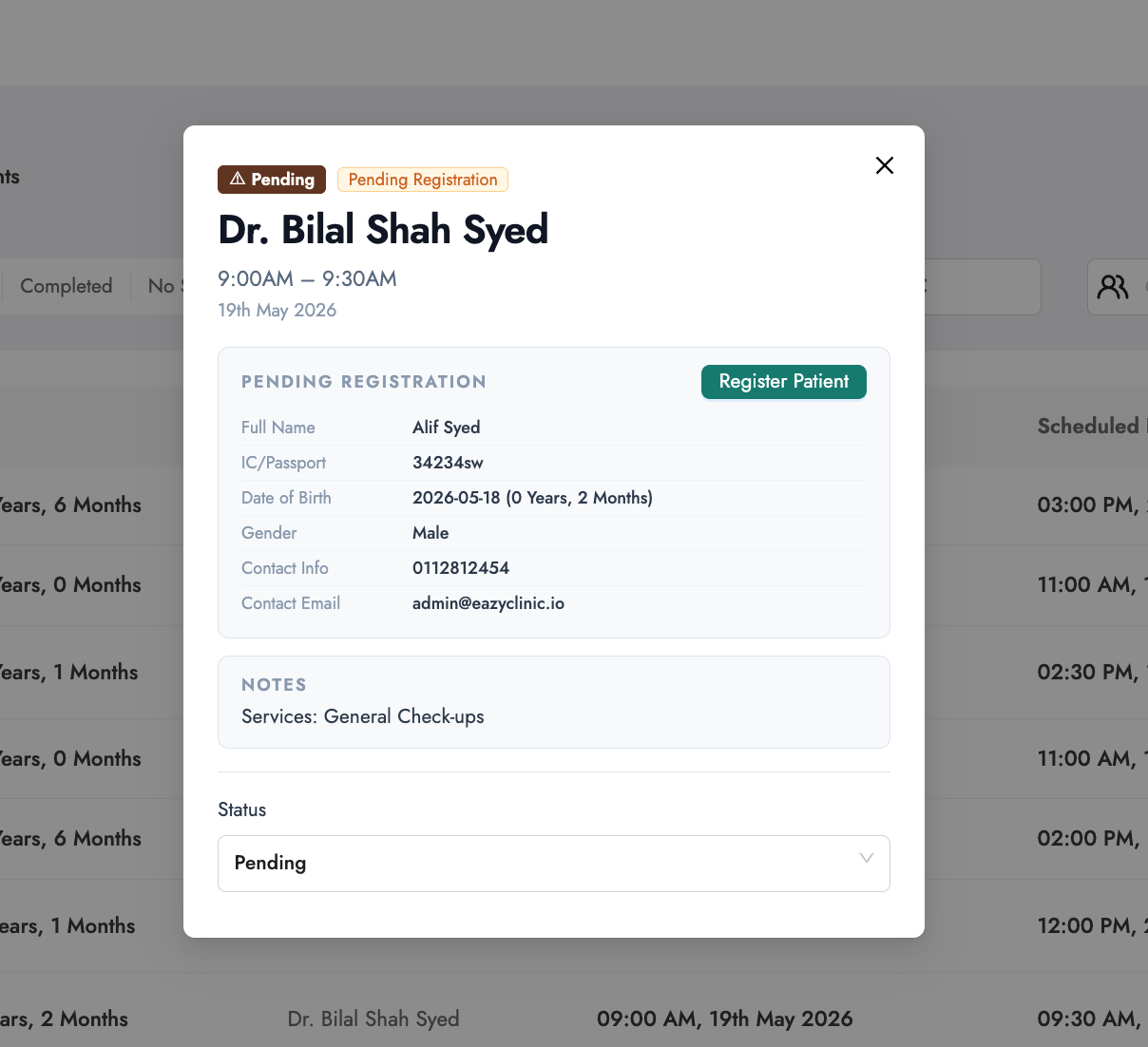
When a new patient books online — someone who isn't in your system yet — the appointment comes in as Pending and is held as a guest booking. It's flagged Pending Registration, and instead of a linked patient record it holds the details the patient entered when booking (name, IC/passport, contact, and so on).
Before the visit can go ahead, that guest needs to be turned into a proper patient record. Open the appointment and click Register Patient:
- The registration form opens pre-filled with the details from the booking, so there's little to retype. Review and complete anything missing (see the Patients guide for the full form).
- EazyClinic checks the IC/passport against your existing patients:
- Already registered? It offers to link the appointment to the existing patient instead of creating a duplicate.
- New person? It registers them and links the new record to the appointment.
- Once registered or linked, the appointment moves to Scheduled and is ready to proceed as normal.
Consultant availability (bookable slots)
Available slots come from each consultant's availability — the working hours you set for them. If a consultant has no availability set, there are no slots to book against (you can still use a custom time).
You set availability on the consultant's staff profile. See the Staff guide.
When an appointment is Cancelled or marked No Show, its slot is released so another patient can book it.
Rescheduling and cancelling
Open an appointment to manage it:
- Reschedule — change the date/time. Only Pending or Scheduled appointments can be rescheduled. The patient is notified of the new time.
- Update status — move the appointment between statuses (for example, mark No Show or Cancelled).
- Add notes — record anything relevant to the booking.
Turning an appointment into a consultation
When the patient arrives, open the appointment and choose Start Consultation. EazyClinic:
- Creates a consultation linked to that appointment, and
- Moves the appointment to In Consultation.
From there you run the visit exactly as described in the Consultations guide. When you complete the consultation, the linked appointment is marked Completed automatically.
Related guides
- Consultations — what happens after the patient arrives.
- Staff — setting consultant availability.
- Patients — registering the patient you're booking.
![[object Object] icon](/_next/static/media/whatsapp-logo.faecda2e.svg)